Get paid against the job, not in a separate app.
Deposit, draws, final — the invoices come from the estimate's payment schedule and live on the project. Collect by card through a link, or record the check. What is open, what is past due and what came in this month are always one screen away.
7 days free. $250 a month after, whole company. Cancel any time.
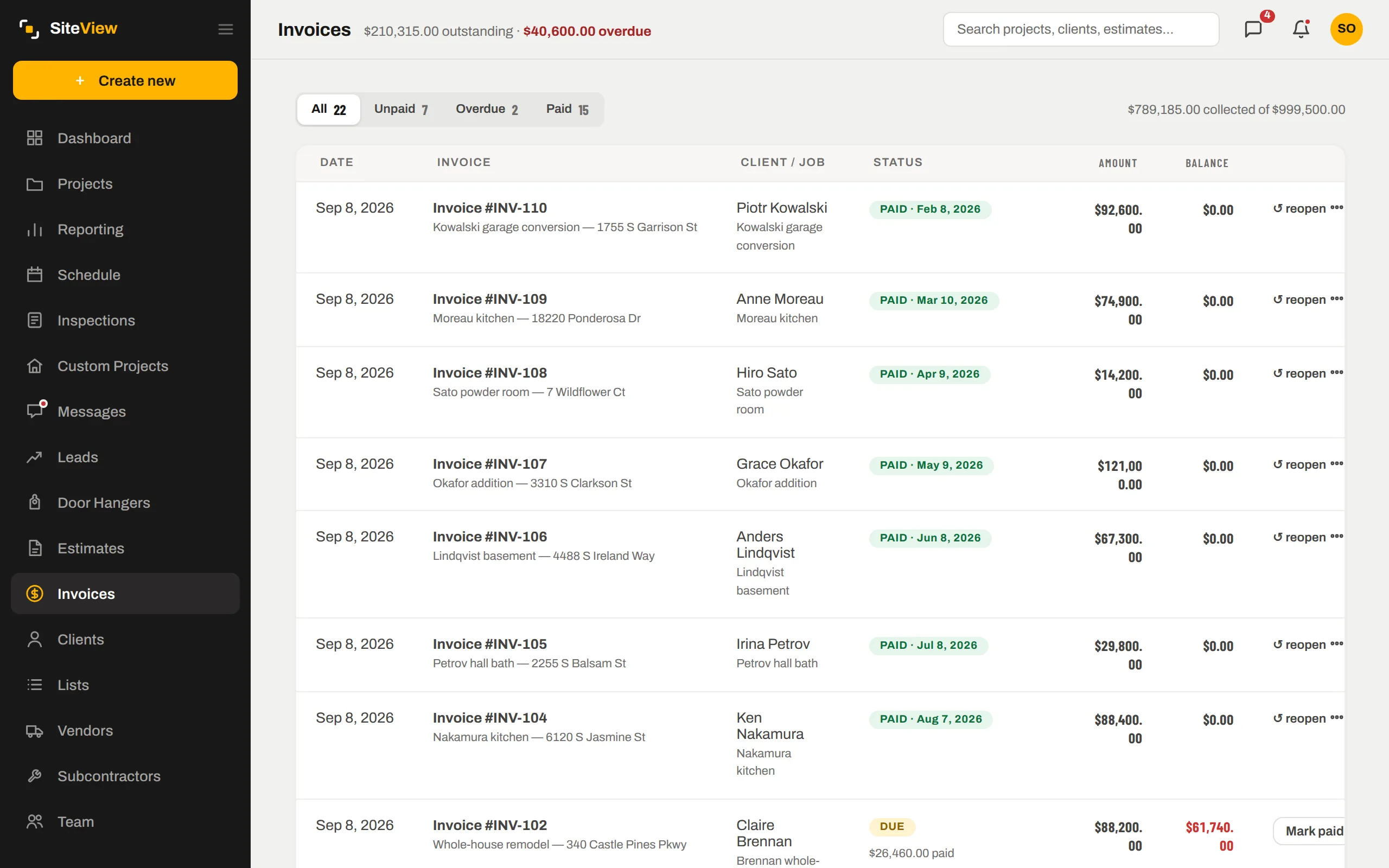
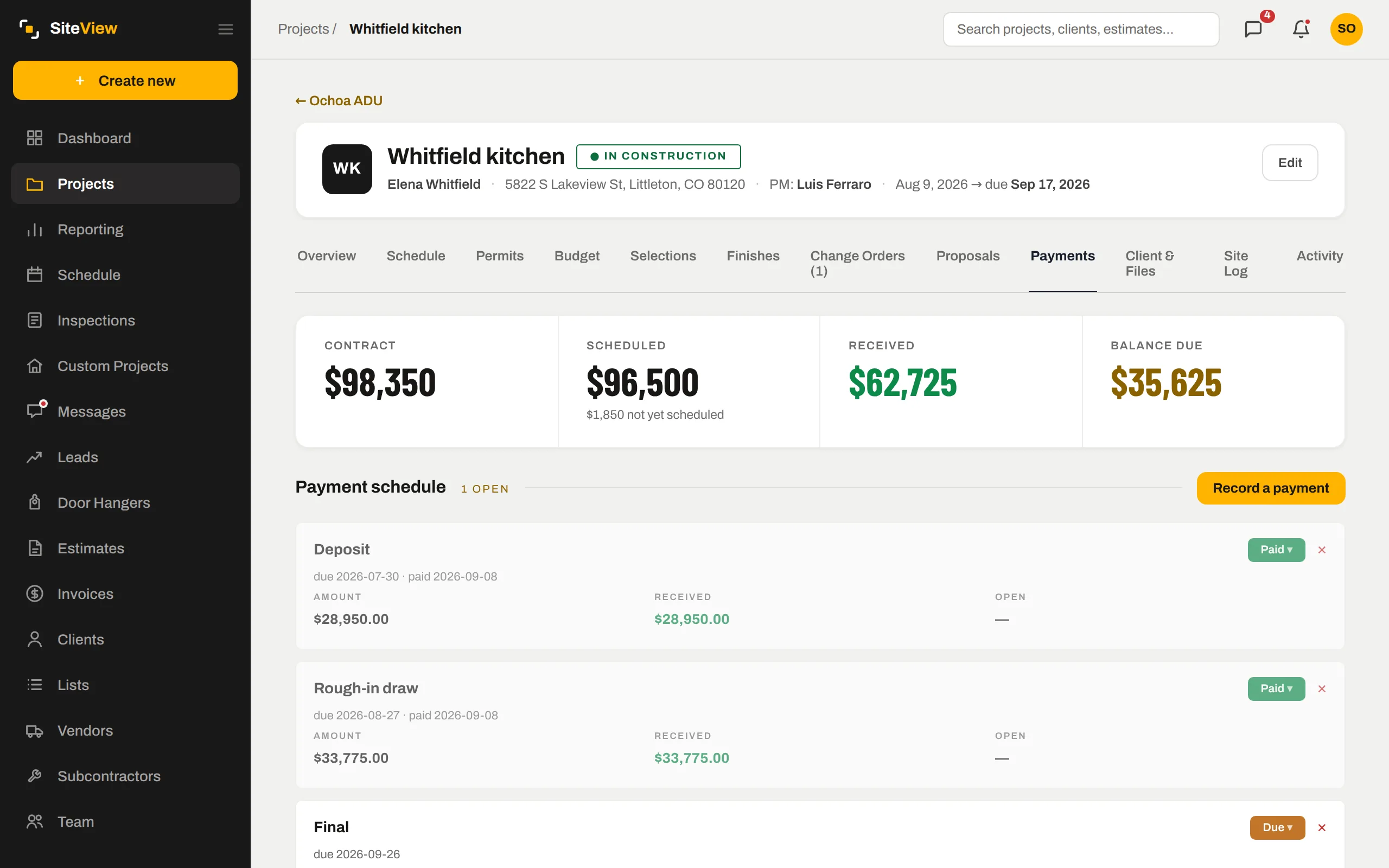
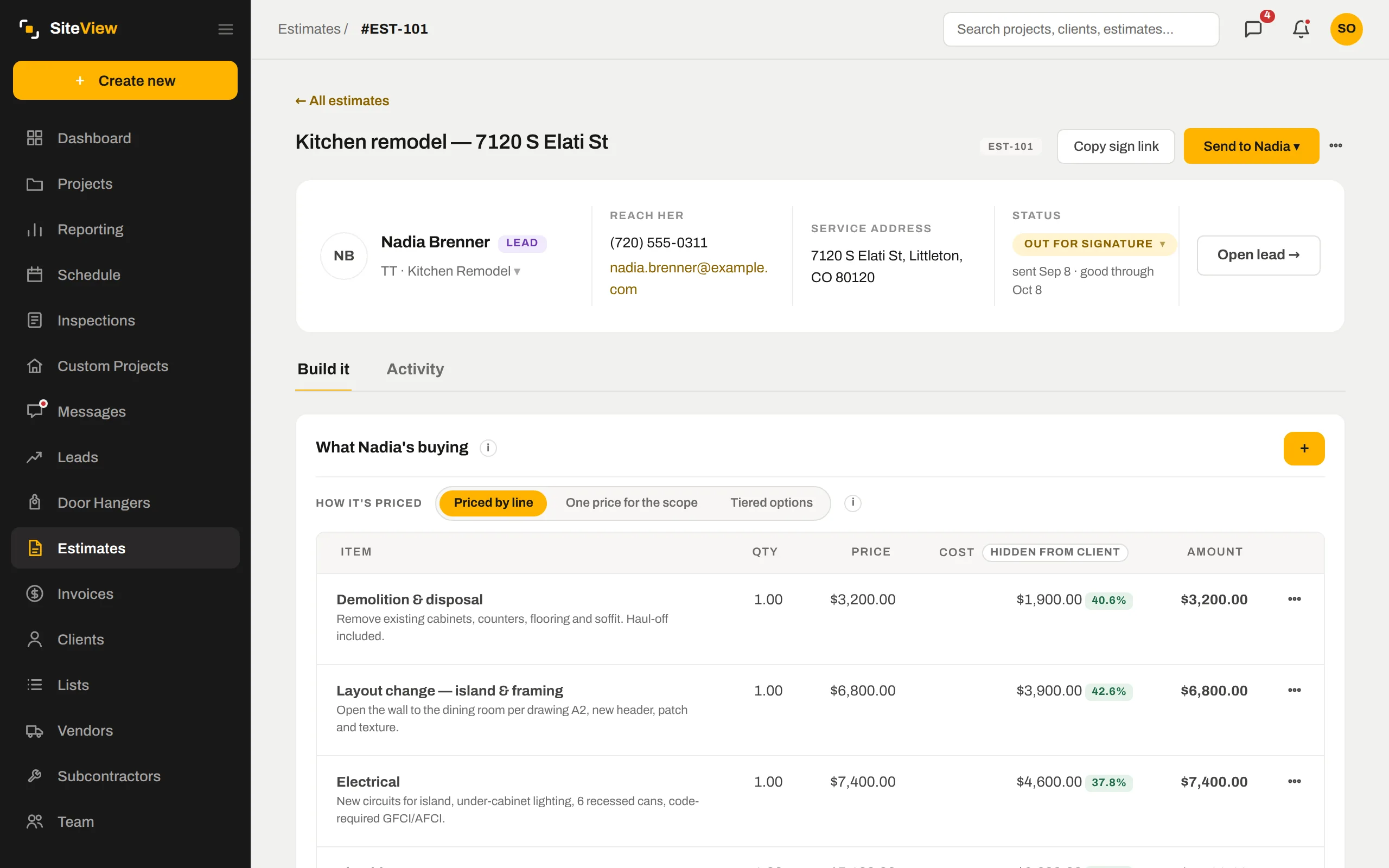
The draw schedule from the estimate becomes the invoices.
30% on signing, 40% at rough-in, 30% at completion — set it once on the estimate and the invoices follow. Each one is a page the client opens on their phone, with the scope, what they have paid so far and the balance.
- Deposit invoice created the moment the estimate converts
- Adjust an invoice and the client link updates — no re-sending PDFs
- Late invoices go red on the dashboard after three days
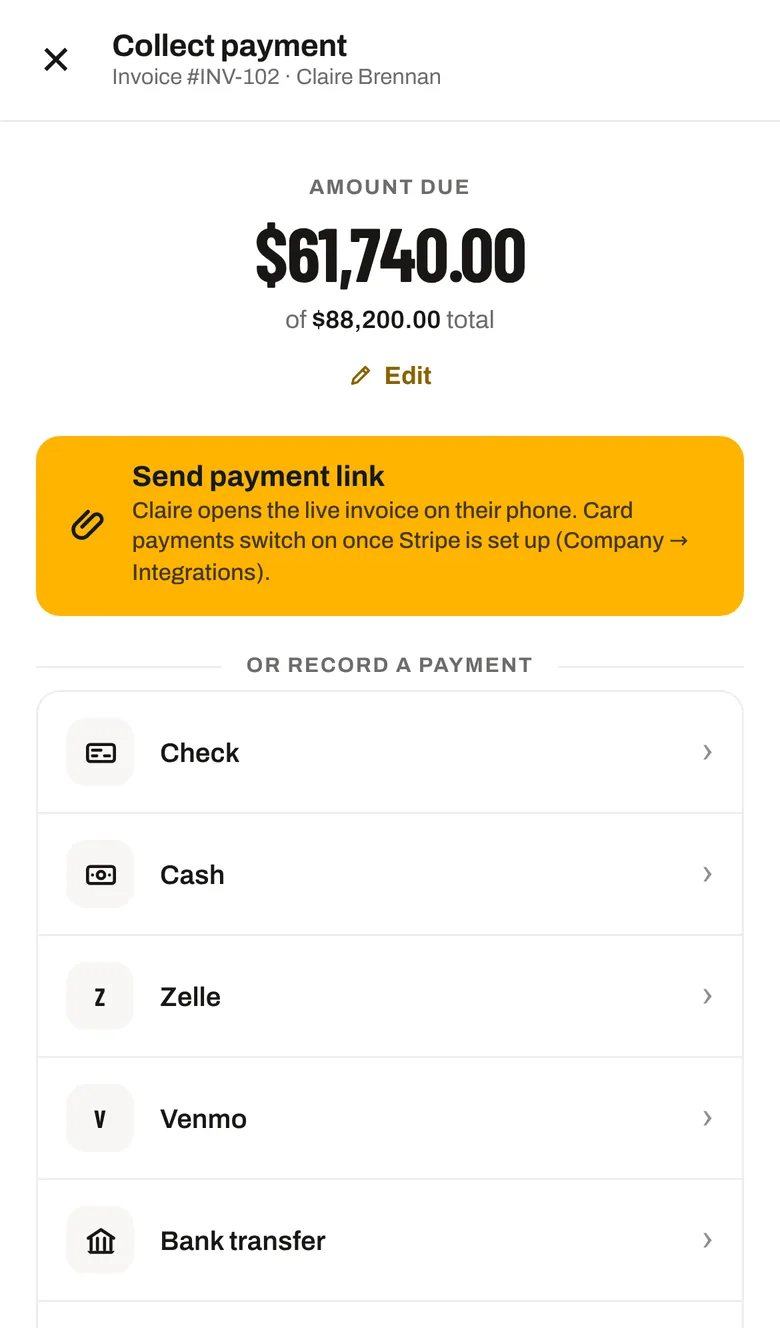
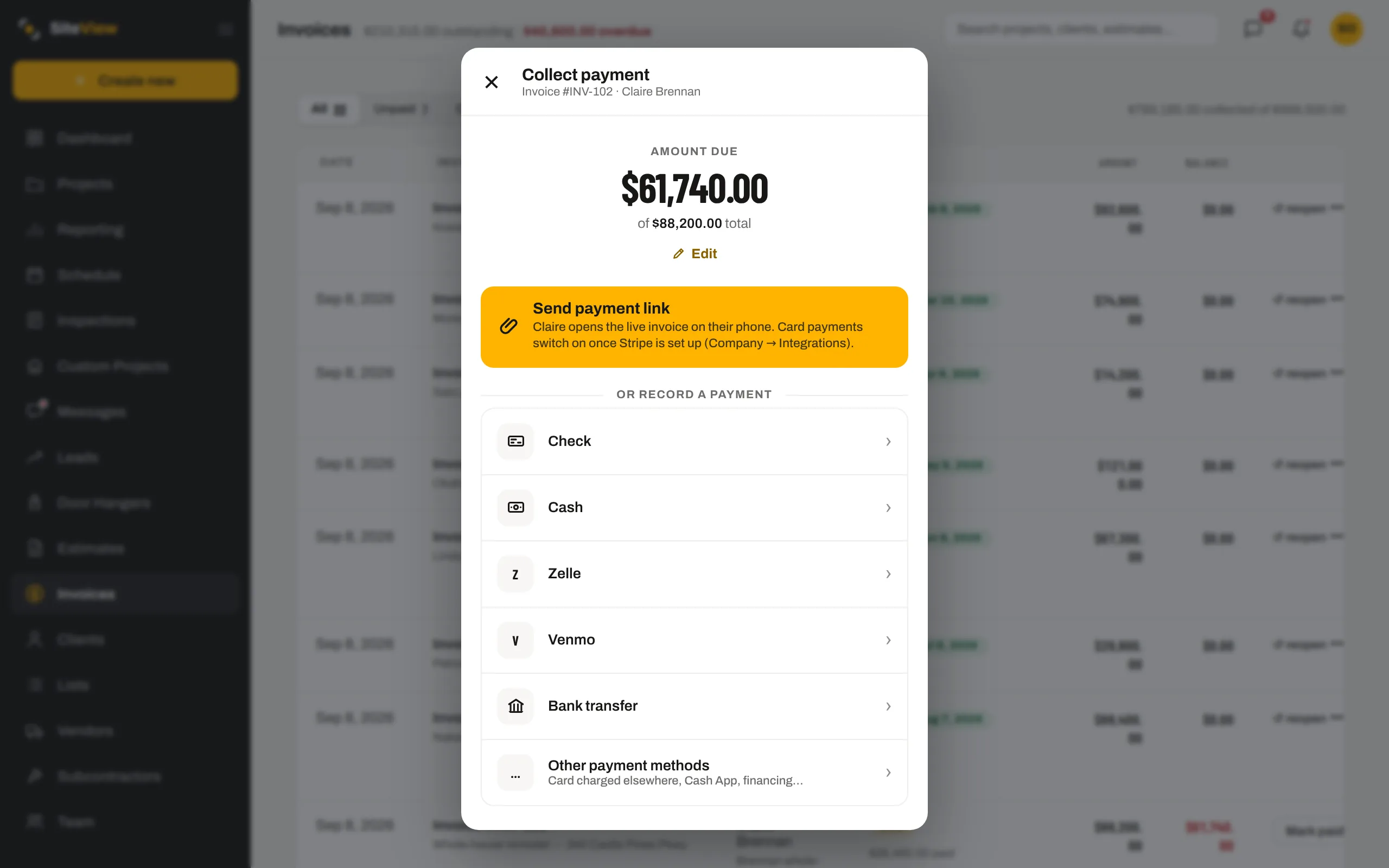
Send a payment link. Or record the check.
Collect payment opens one sheet: the amount due, a button that sends the live invoice to their phone for card payment, or one tap to record a check, cash, Zelle, Venmo or a bank transfer with the date and a note. Card processing runs on Stripe; SiteView never sees the card number.
- Card fees can be passed through or absorbed — your choice
- Every payment posts to the job and the money reports the same second
- Receipts emailed to the client automatically
Outstanding, overdue, collected — by month.
The Invoices page reads across every job: what is outstanding, what is overdue, what has been collected against what was invoiced. The dashboard charts money collected by month, from dated payments — not from what you meant to collect.
- Unpaid, overdue and paid in one list
- "$210,315 outstanding · $40,600 overdue" at the top of the page
- Undated payments are called out, not silently dropped from the chart
The same record, further along.
Nothing here is a separate module with its own copy of the data. Invoices & payments is one view of the job; these are the next ones.
The draw schedule is set on the estimate; the invoices are its consequence.
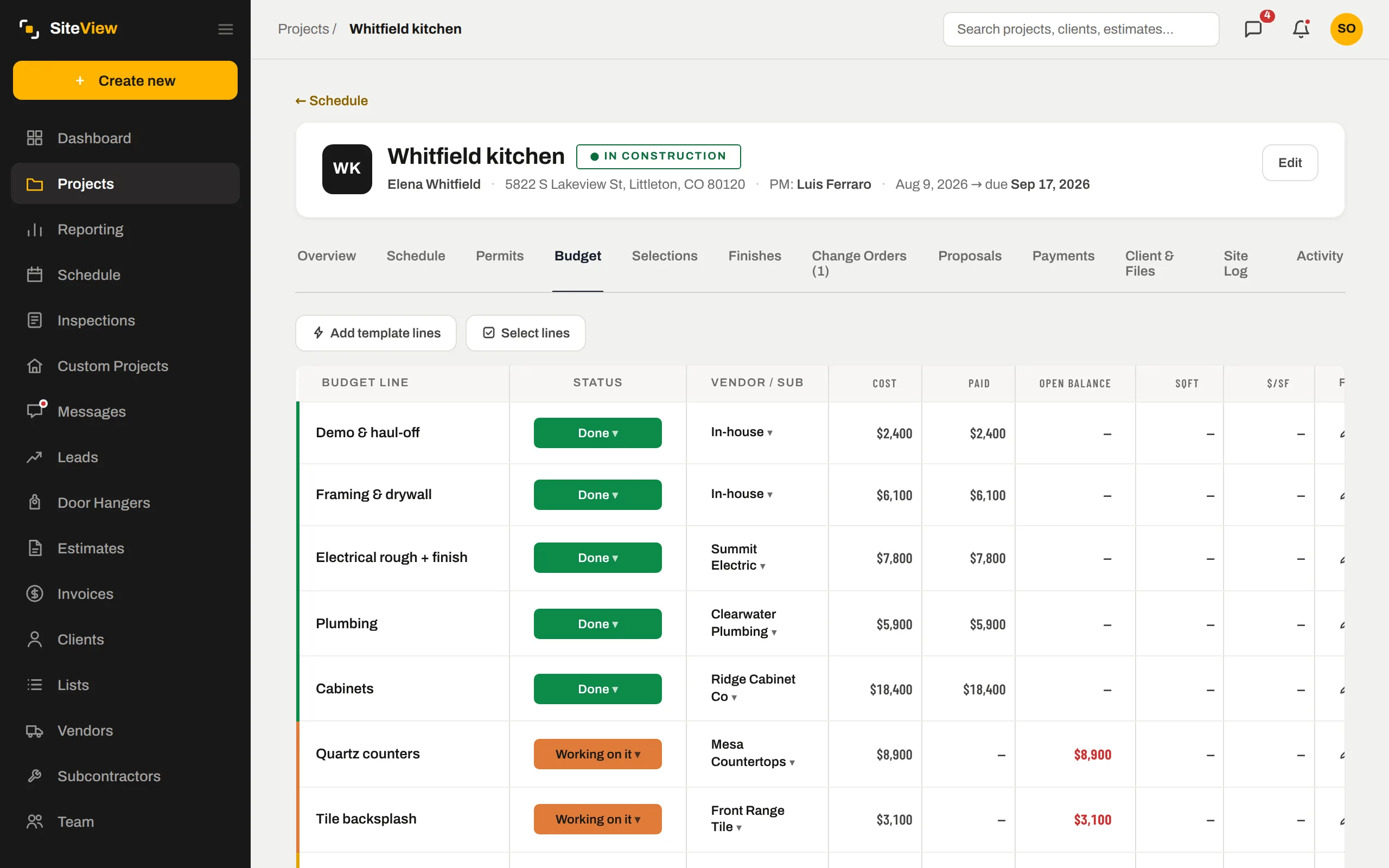
Received sits beside committed cost, so the job's cash position is one glance.
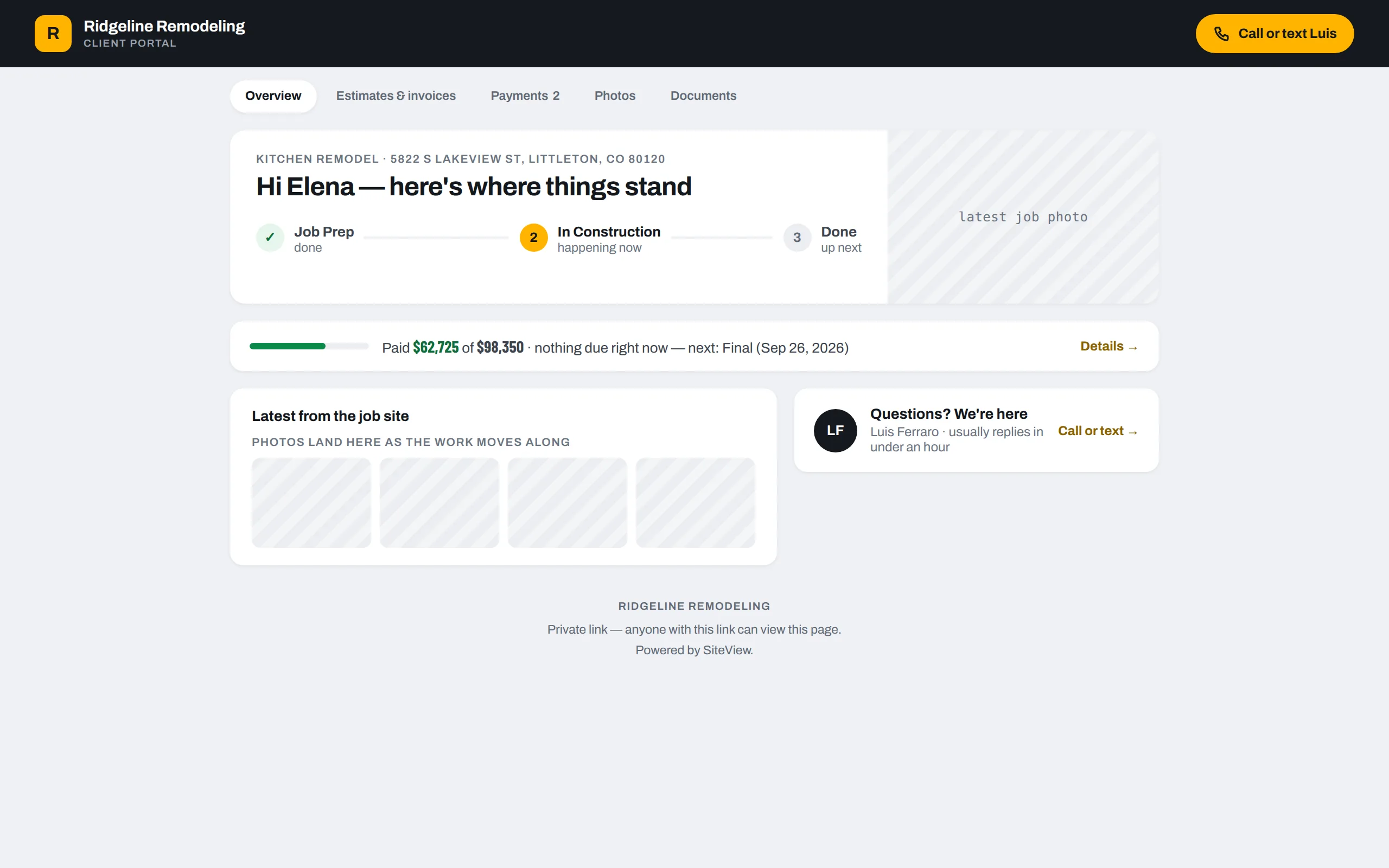
Every invoice and every payment shows in the client's portal.
Straight answers.
What does card processing cost?+
Can I invoice something that was not on the estimate?+
Does it sync to QuickBooks?+
Put one of your own jobs through it.
Free for 7 days. We set the company up with you, load the first job together, and you judge it with your numbers — not a demo's.
7 days free. Card on file, nothing charged until day 8. $250 a month after — cancel any time.